Visual guide

Ring up a sale in five steps.

From the first item to the receipt in your customer's hand, on the real Register screen. Each number in a picture matches a line beside it.

Real Franpos screensLast checked against the app: October 9, 2026

Start a sale

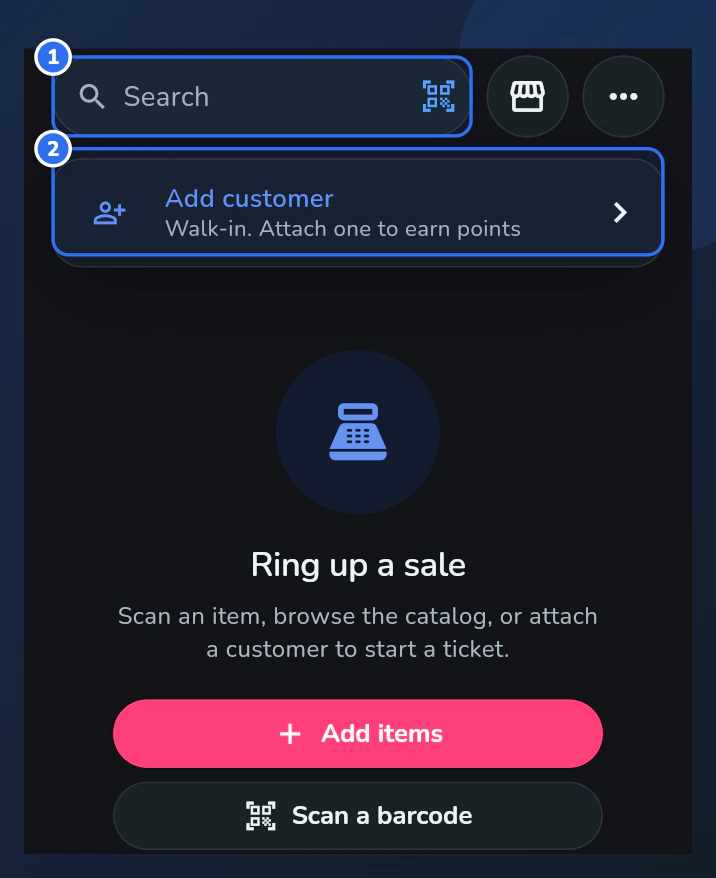
  1. Open Register from the left menu. Scan a barcode or type in the search box. Typing an exact SKU and pressing Enter adds it.
  2. Tap Add customer, just under the ticket number and order type, so the sale counts toward their history and loyalty points. Look people up first, so you never make a duplicate.

On a tablet or computer your items are on one side, with tabs for Items and On hold, and the ticket (the cart) is on the other.
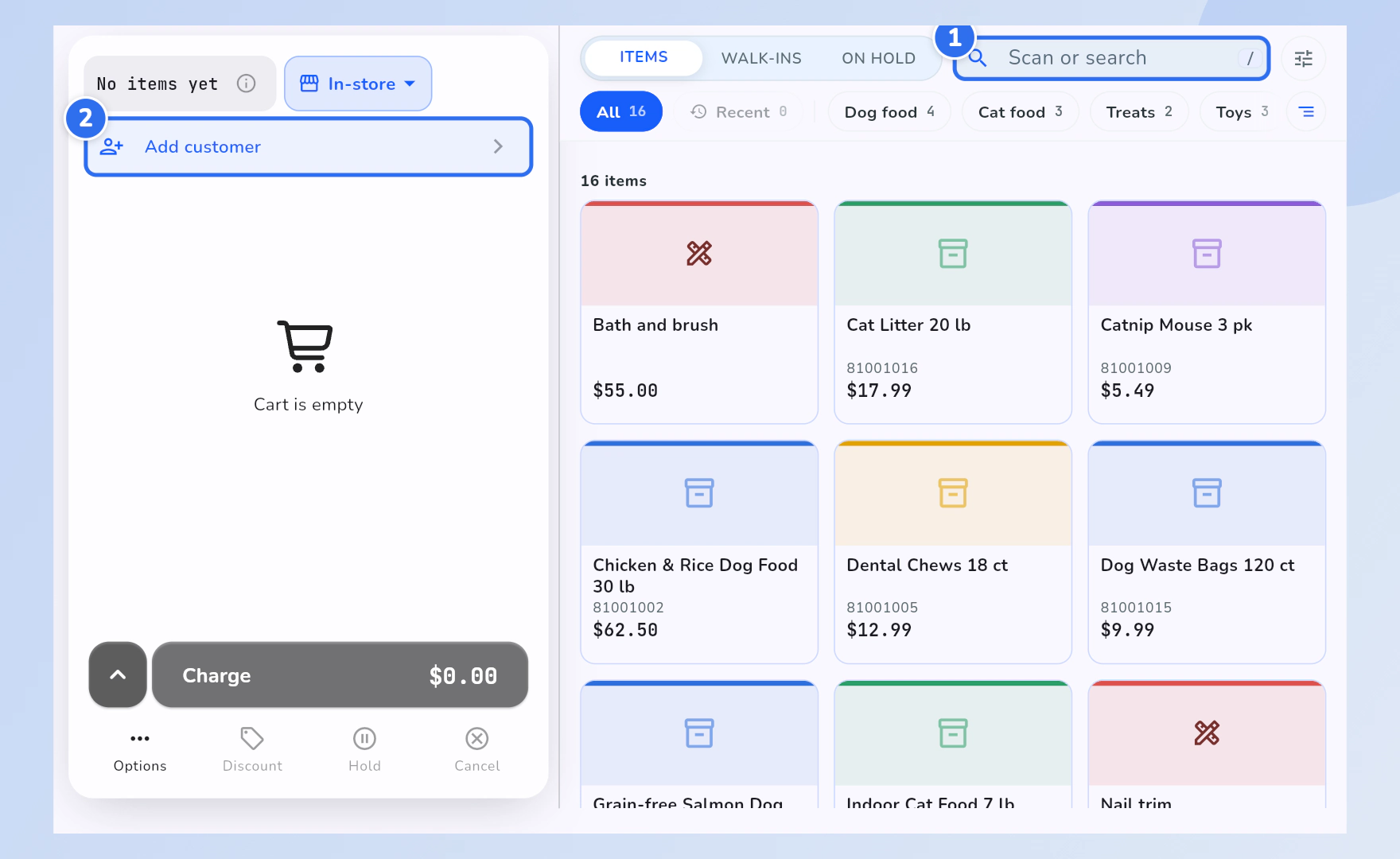
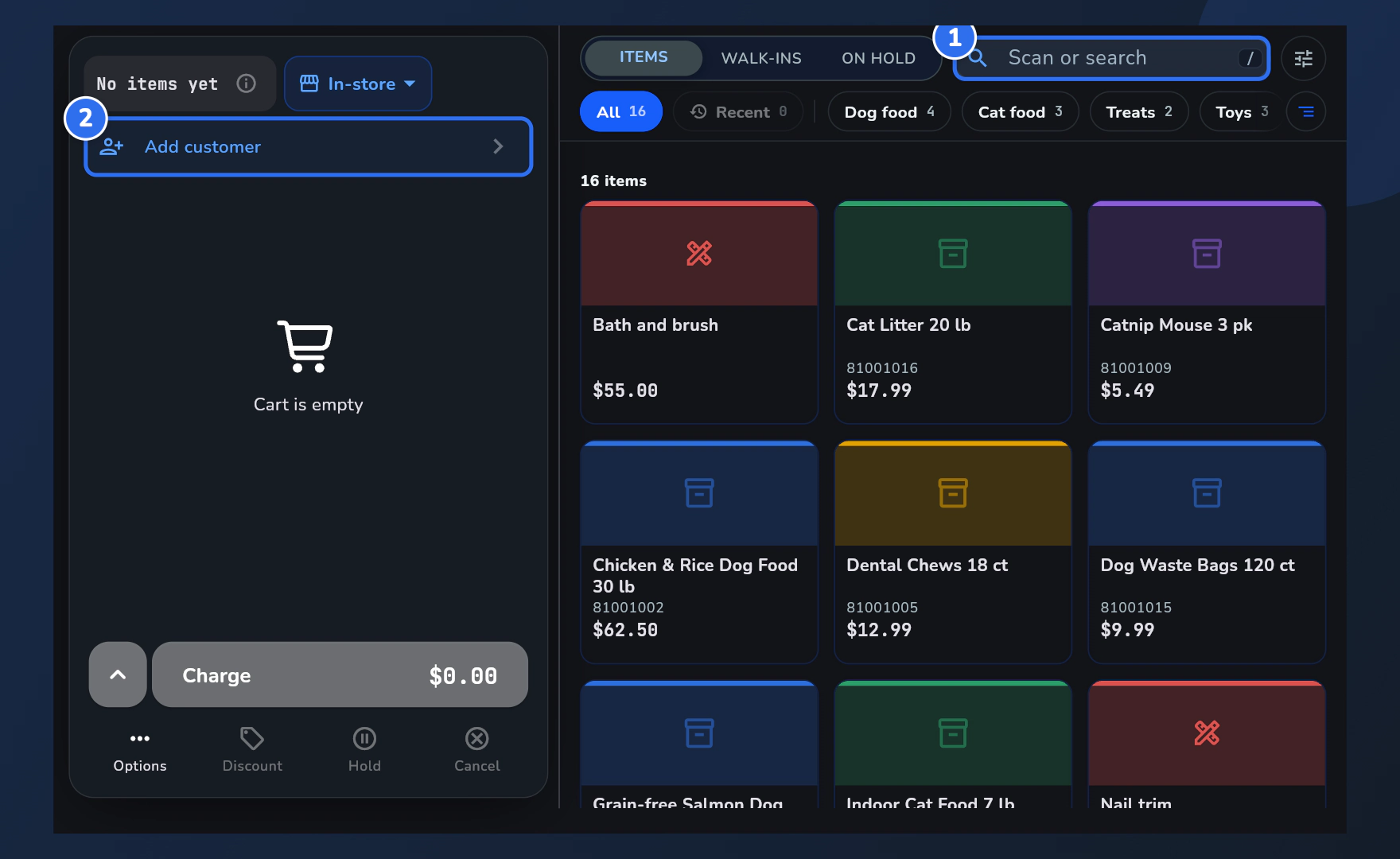
The Register with an empty ticket: the search box is marked 1 and the Add customer row is marked 2.The Register with an empty ticket: the search box is marked 1 and the Add customer row is marked 2.
On a phone

You add items from an Add items screen and review them in the Cart.
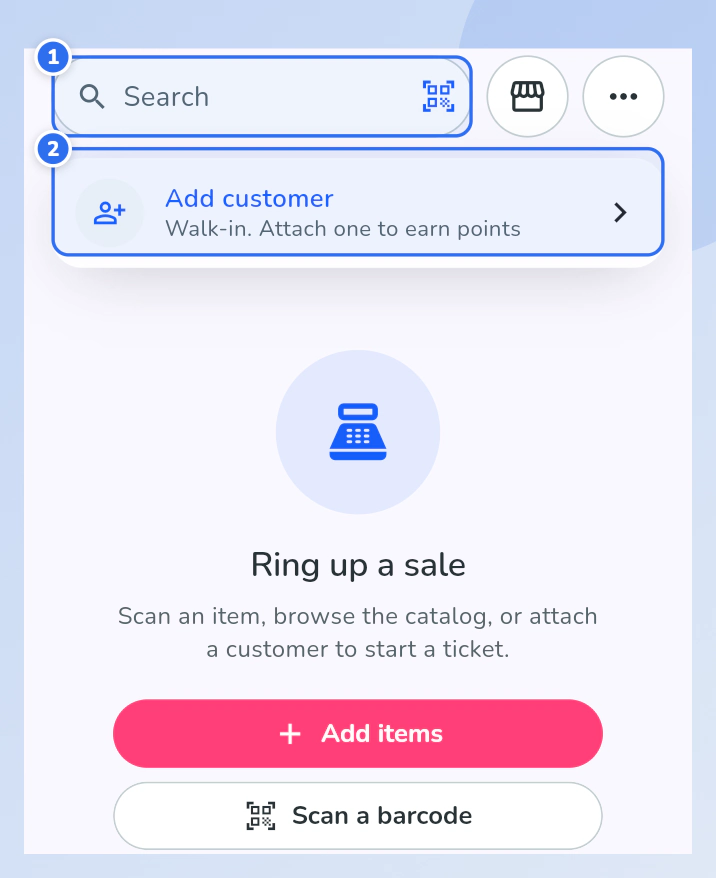
The phone Register with an empty ticket: the search box is marked 1 and the Add customer row is marked 2.The phone Register with an empty ticket: the search box is marked 1 and the Add customer row is marked 2.
Show me in Franpos

Choose the order type

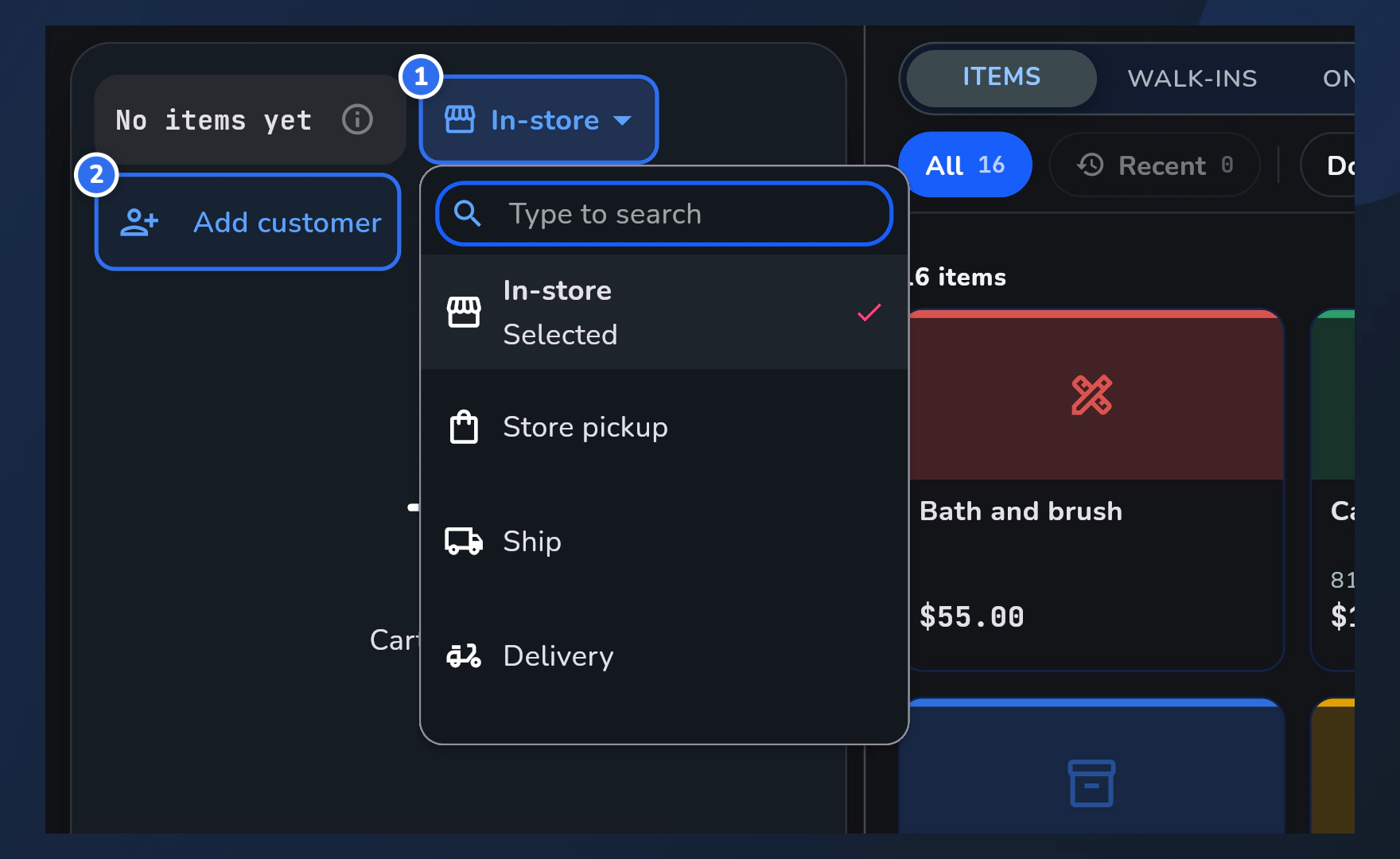
  1. Every sale starts as In-store. Depending on how your company is set up, the ticket may also offer Store pickup, Ship or Delivery. On a tablet or computer it is the dropdown beside the ticket number.
  2. Ship and Delivery need a customer first, so Register asks you to Add customer. Then pick a day and time from the slots shown: payment stays blocked until a slot is chosen.
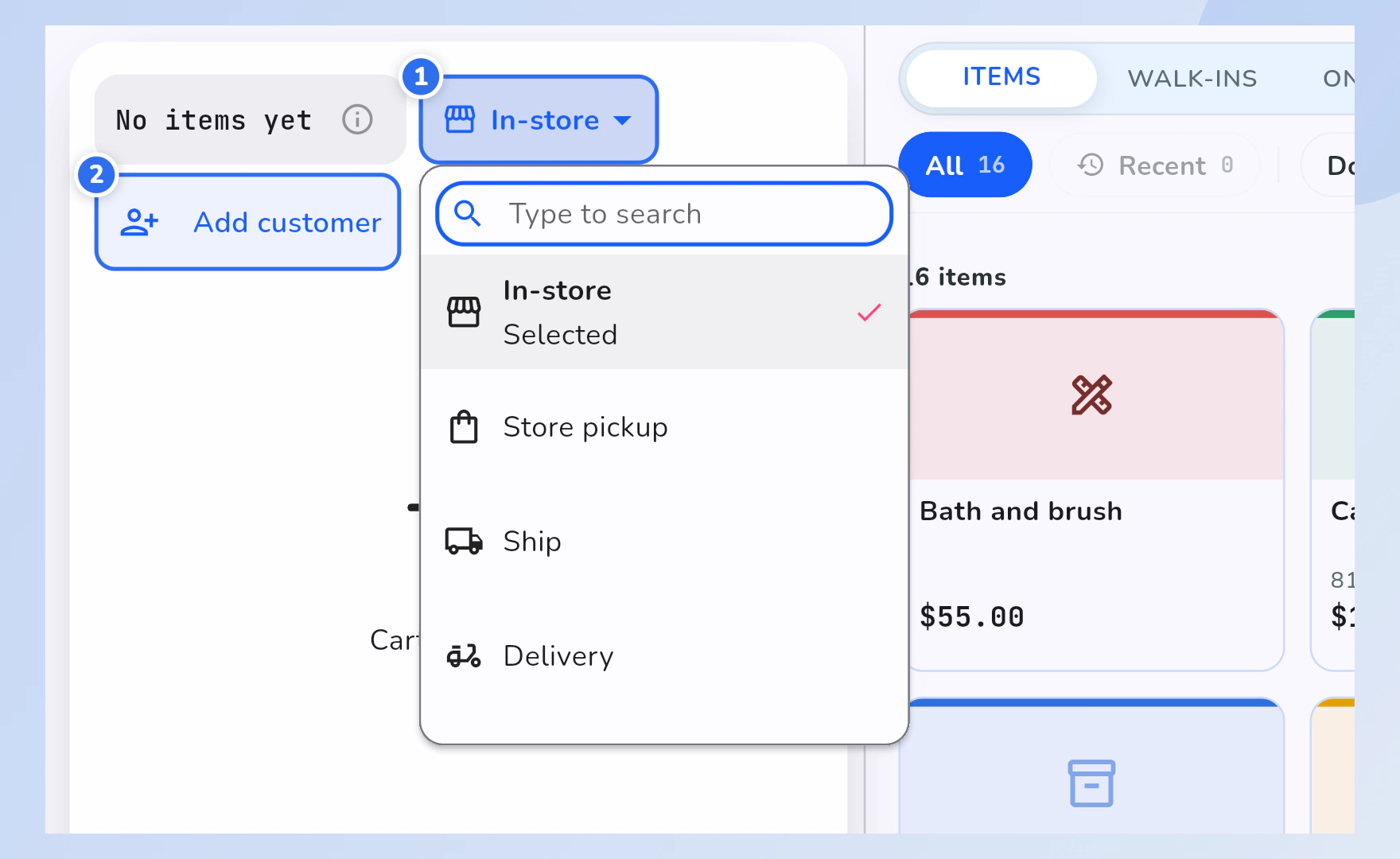
The order type dropdown open on the Register ticket, listing In-store, Store pickup, Ship and Delivery. The dropdown is marked 1 and the Add customer row is marked 2.The order type dropdown open on the Register ticket, listing In-store, Store pickup, Ship and Delivery. The dropdown is marked 1 and the Add customer row is marked 2.
On a phone

Tap the store button beside the search box to pick Store pickup, Ship or Delivery, if your company offers them.
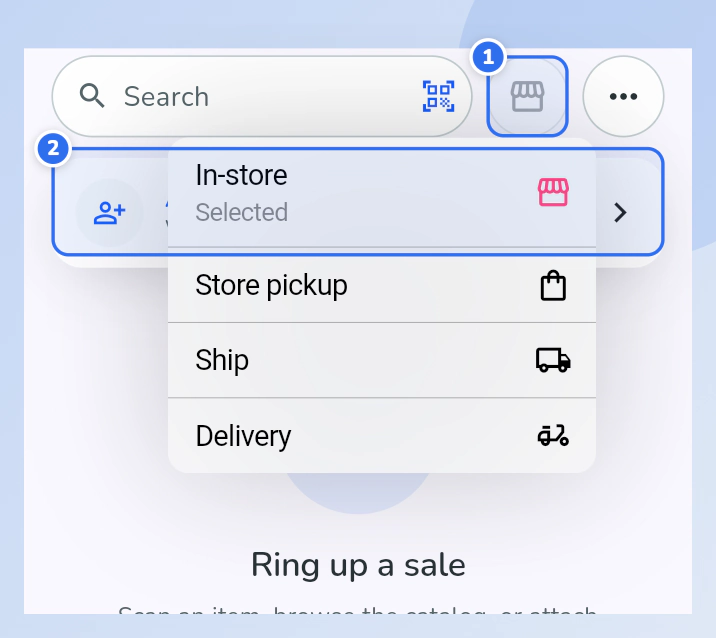
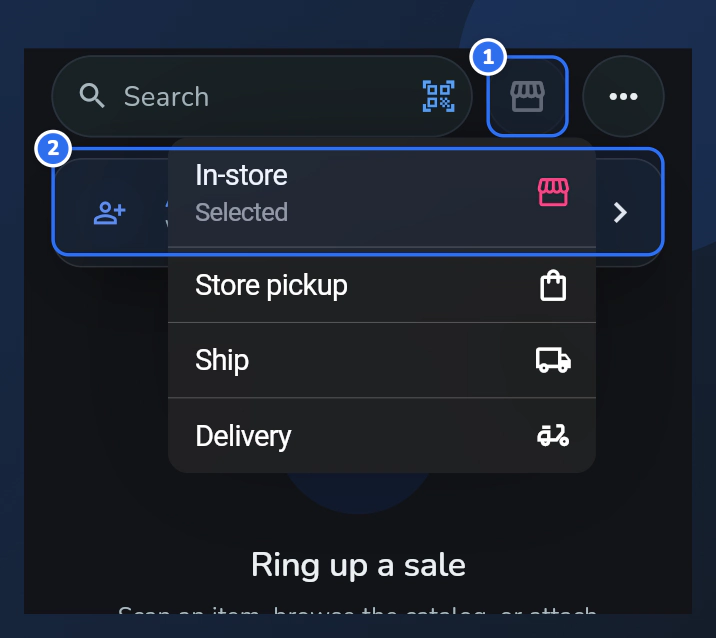
The order type menu open on the phone Register, listing In-store, Store pickup, Ship and Delivery. The store button is marked 1 and the Add customer row is marked 2.The order type menu open on the phone Register, listing In-store, Store pickup, Ship and Delivery. The store button is marked 1 and the Add customer row is marked 2.
Show me in Franpos

Add items and see the cart

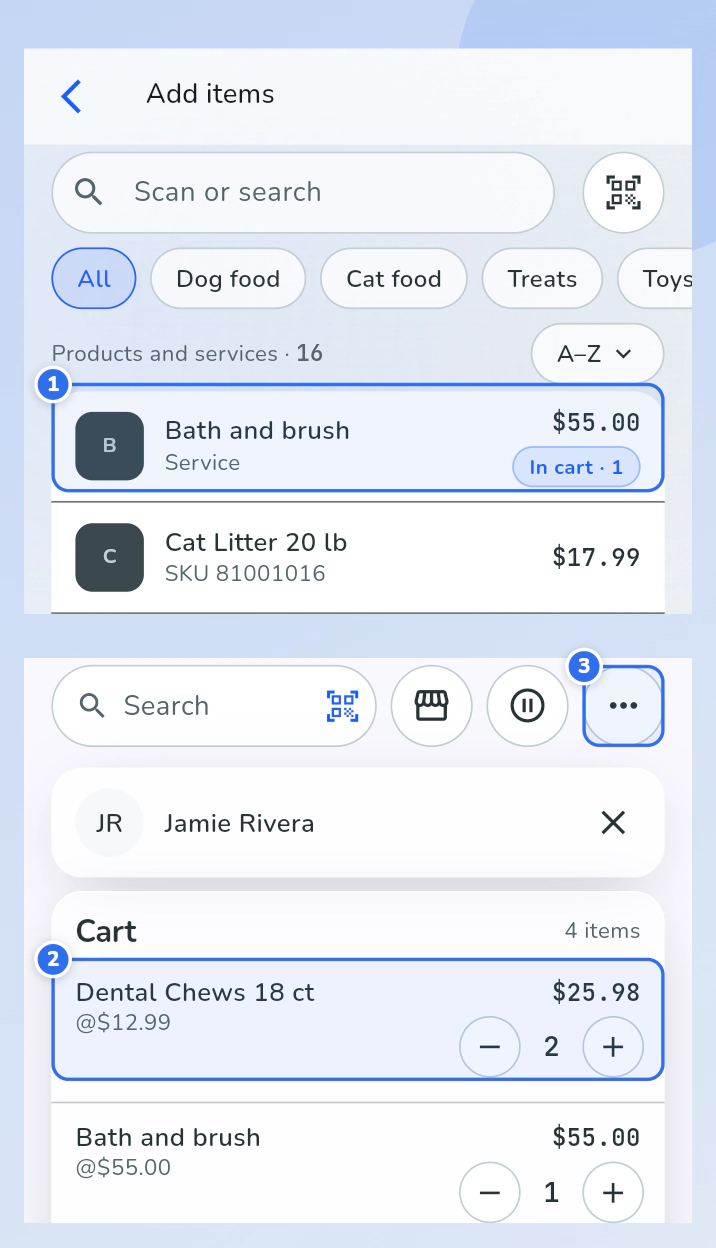
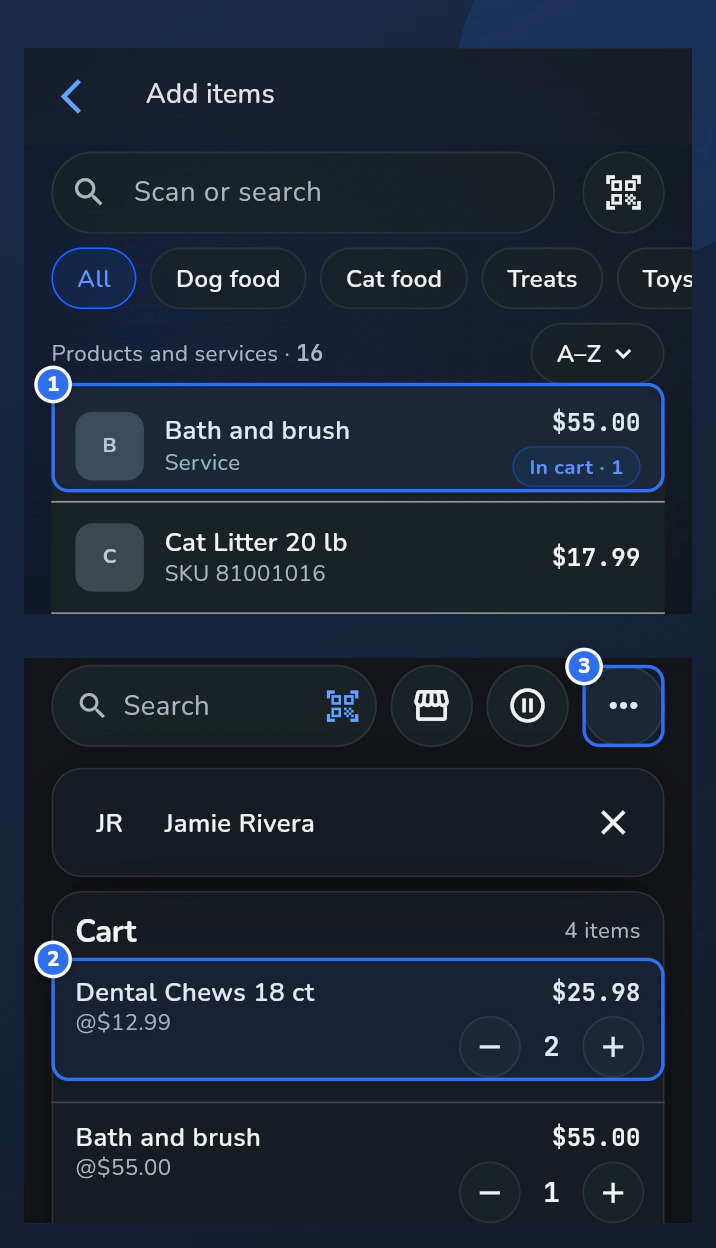
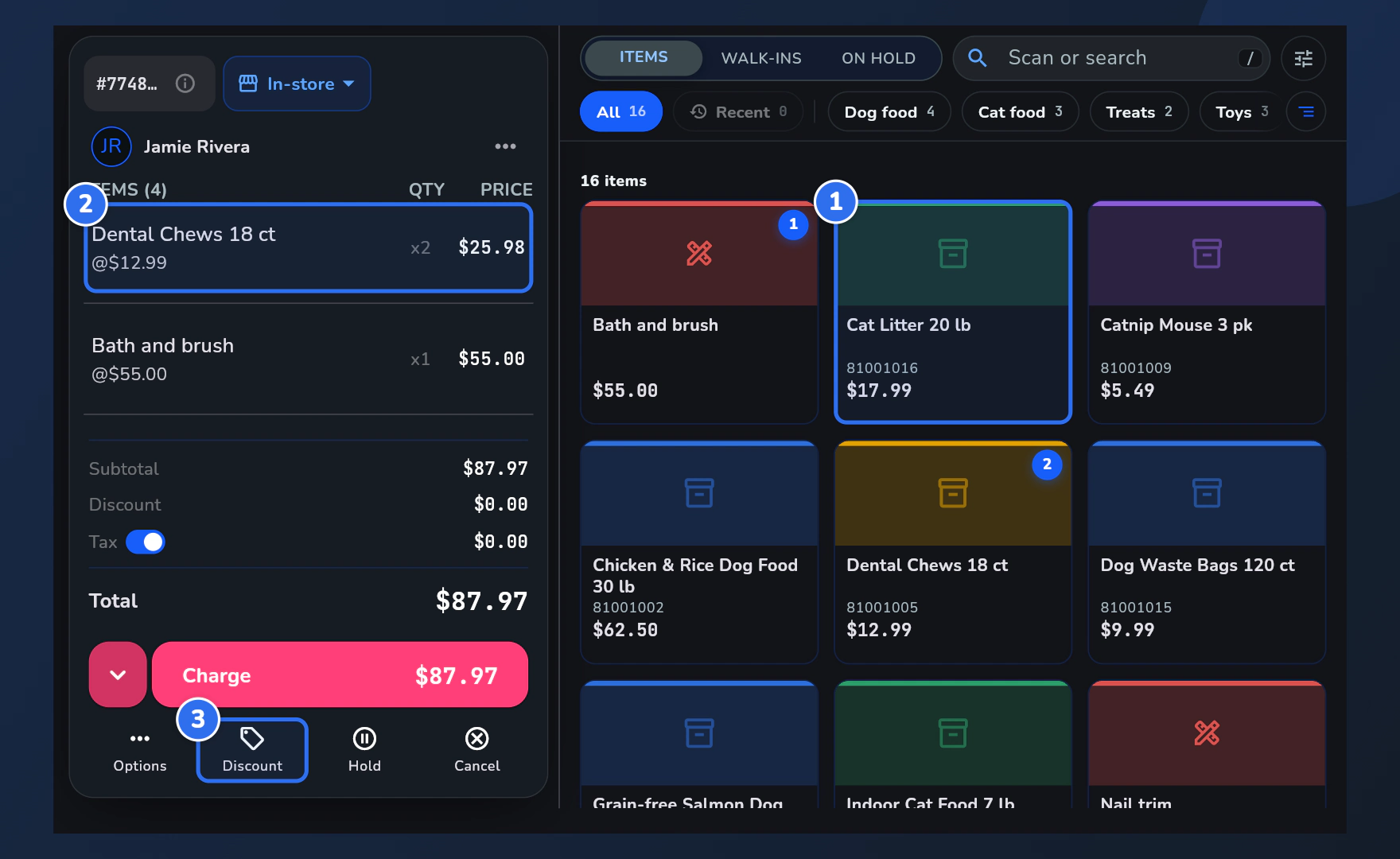
  1. Add what the customer is buying: tap an item tile, use the search box, or scan a barcode.
  2. Tap a line in the cart to change its quantity, price, notes or salesperson. You need the right access to change a price.
  3. Discount under the ticket puts a saved discount on the whole ticket, or open a line to discount just that one.

If the customer steps away, tap Hold under the ticket. The cart clears for the next customer.
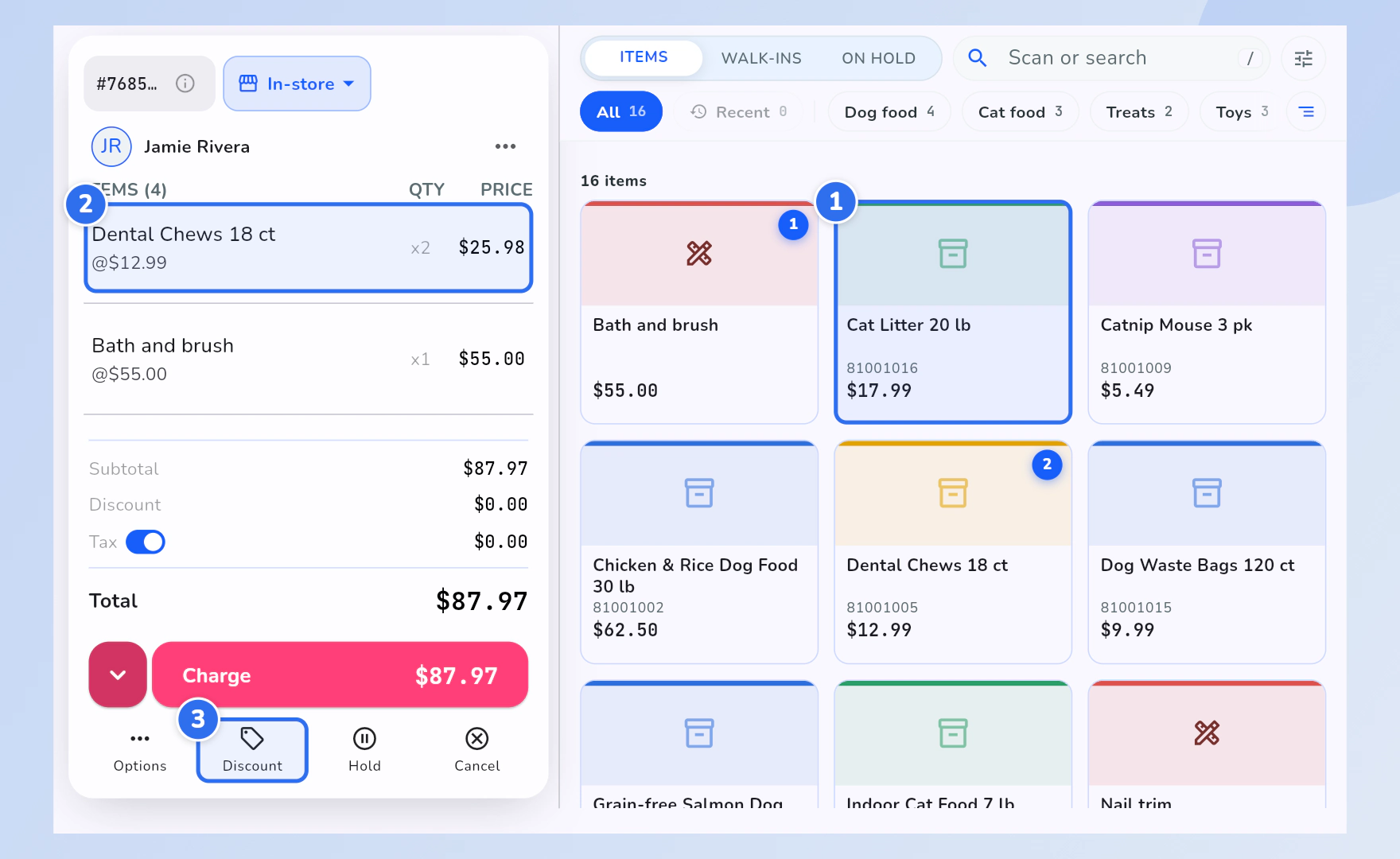
The Register with two items in the cart. An item tile is marked 1, a cart line is marked 2 and the Discount button is marked 3.The Register with two items in the cart. An item tile is marked 1, a cart line is marked 2 and the Discount button is marked 3.
On a phone

Tap Add items or the search box, then tap an item. To discount the whole ticket, open the ⋯ menu and choose Discounts and rewards.

The phone Add items screen and the phone cart. An item is marked 1, a cart line is marked 2 and the options menu is marked 3.The phone Add items screen and the phone cart. An item is marked 1, a cart line is marked 2 and the options menu is marked 3.
Show me in Franpos

Take payment

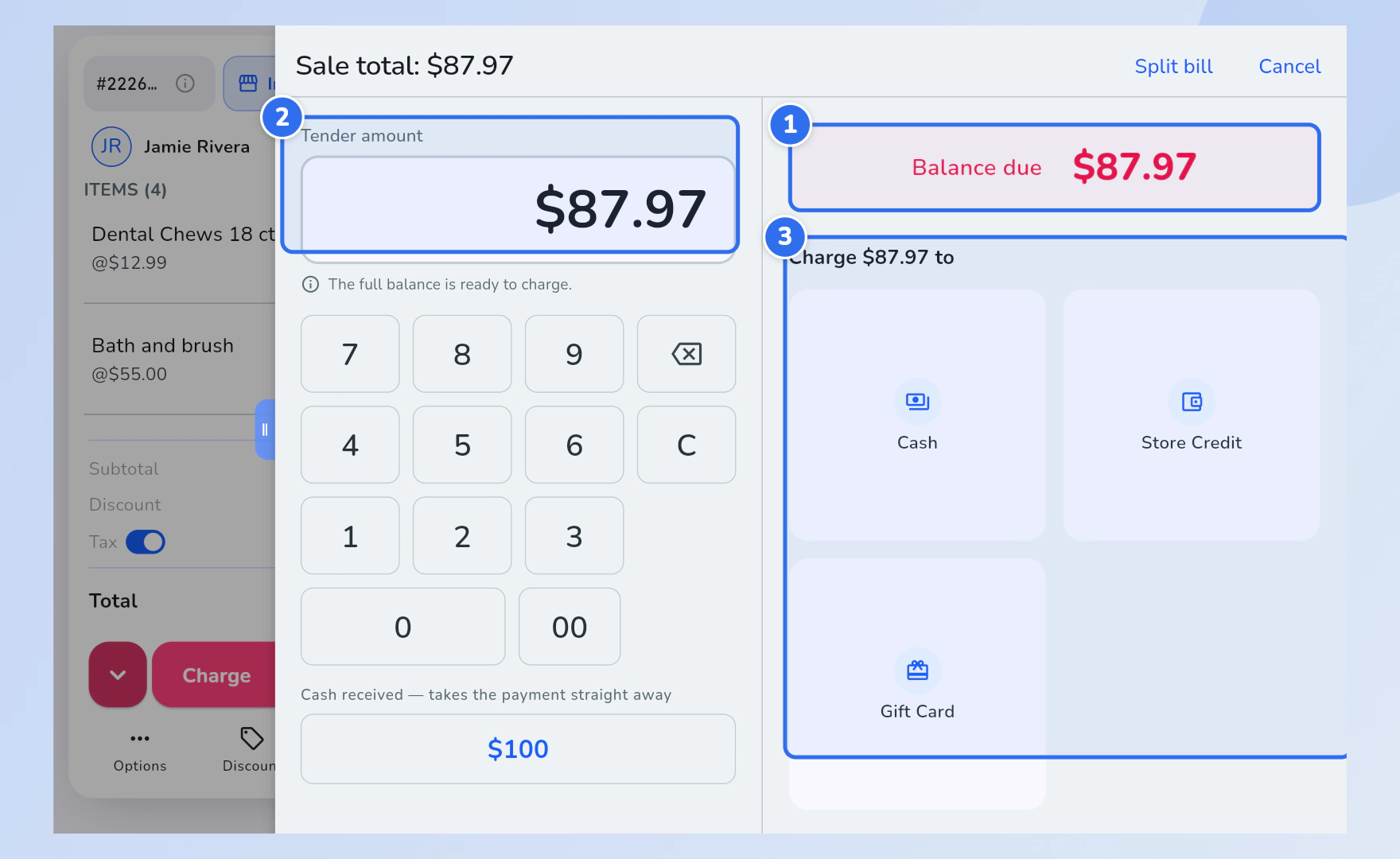
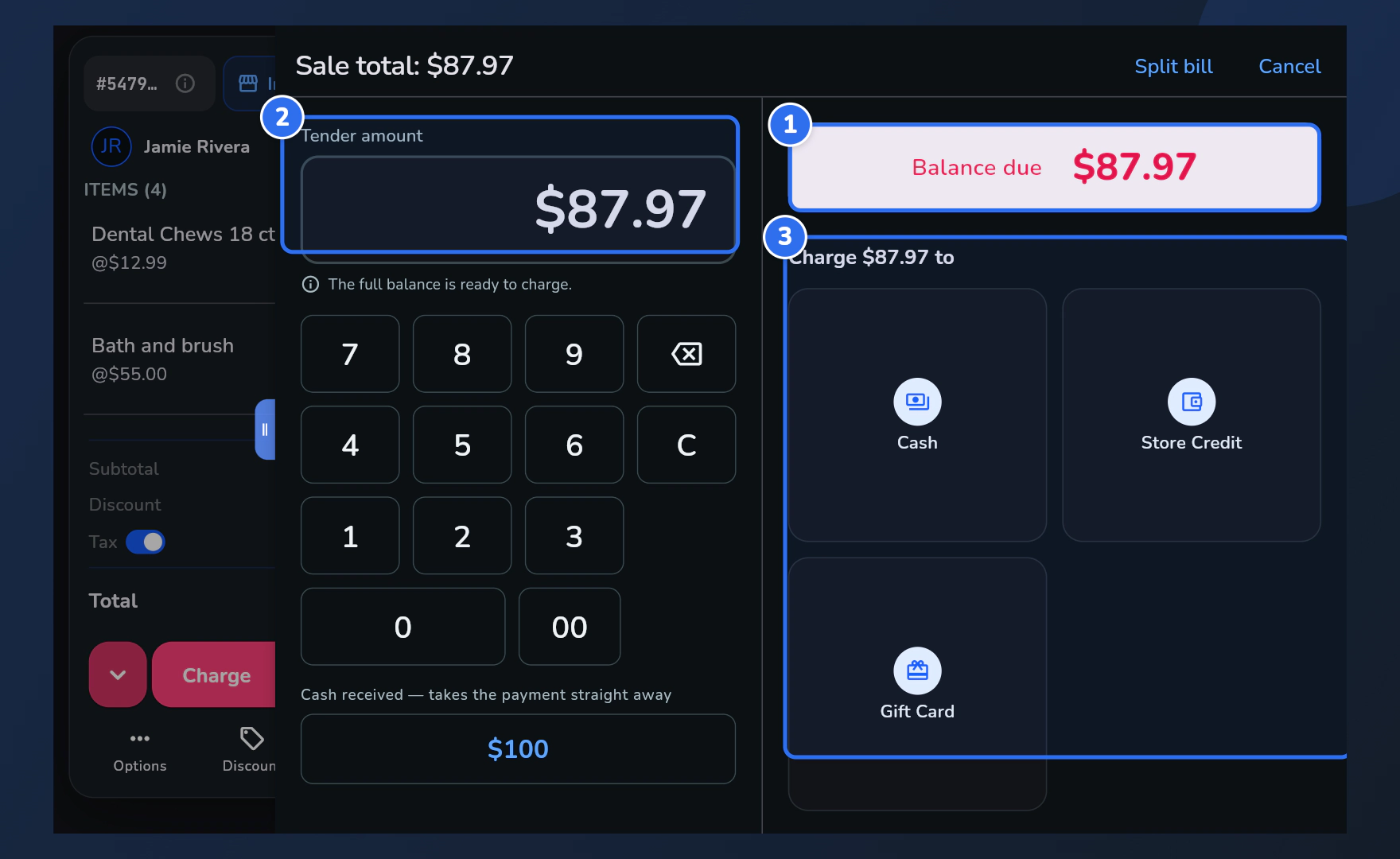
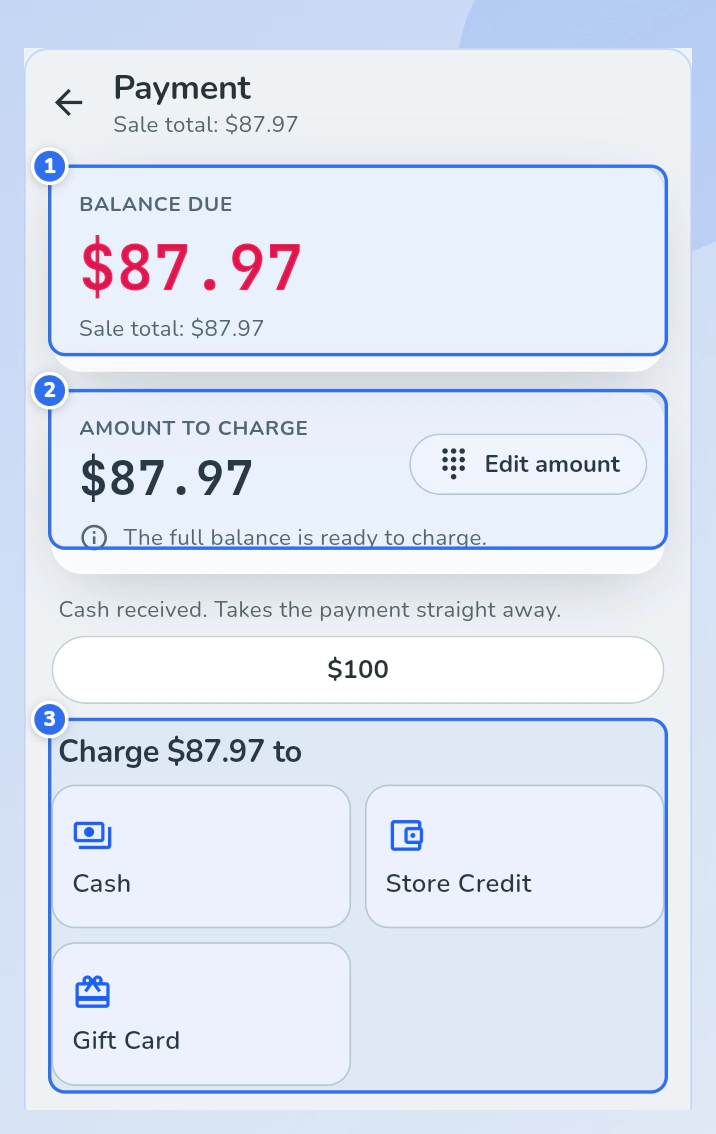
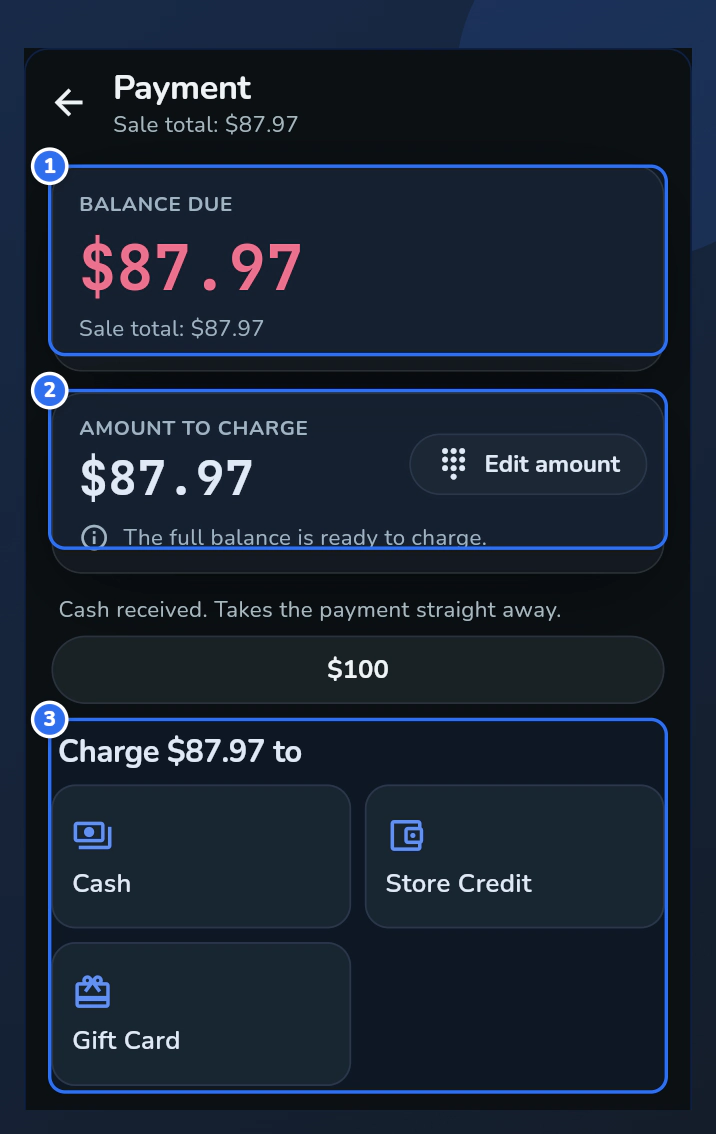
  1. When the cart is right, tap Charge. The payment screen shows Balance due.
  2. For a partial payment, change the Tender amount before choosing a method, then take the rest with another method.
  3. Choose how the customer is paying under Charge ... to. When it reads Balance covered, press the large FINALIZE SALE button.
The Register payment screen. Balance due is marked 1, the Tender amount is marked 2 and the payment methods under Charge to are marked 3.The Register payment screen. Balance due is marked 1, the Tender amount is marked 2 and the payment methods under Charge to are marked 3.
On a phone

To take part of the bill, tap Edit amount before choosing a method, then take the rest with another method.

The phone payment screen. Balance due is marked 1, Amount to charge is marked 2 and the payment methods are marked 3.The phone payment screen. Balance due is marked 1, Amount to charge is marked 2 and the payment methods are marked 3.
Show me in Franpos

After the sale

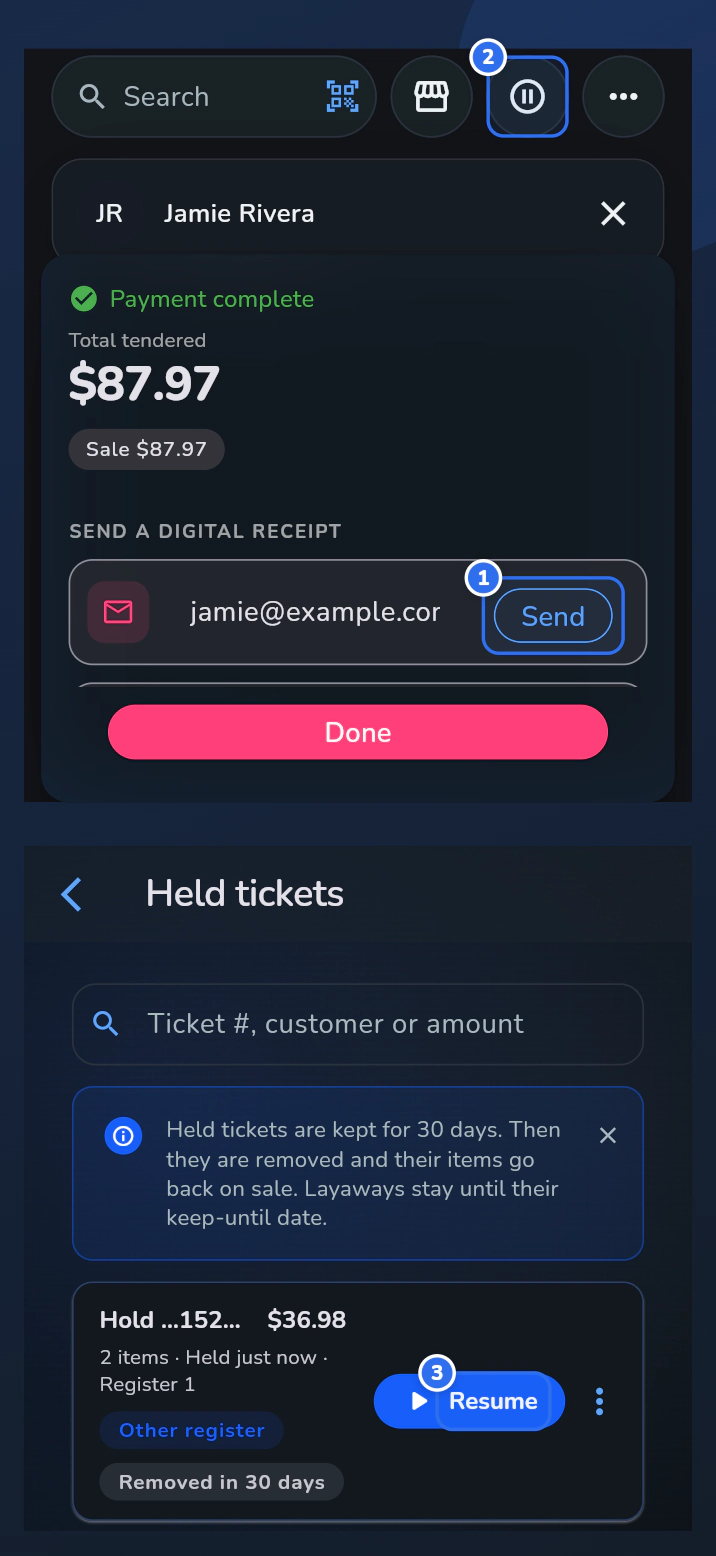
  1. Send the receipt with Send: enter an Email address or Mobile number, or print it on your receipt printer.
  2. Hold parks a sale when a customer steps away. The cart clears for the next customer.
  3. Bring it back from the On hold tab with Resume. Held tickets are kept for a limited time.

If the customer brings something back, find the original ticket in Tickets, open it and choose Refund. In Refund items, select only the lines coming back, or tap Refund all, check the Total to refund and confirm. Refunds need extra access, so if you see a message that you have no permission, ask a manager.
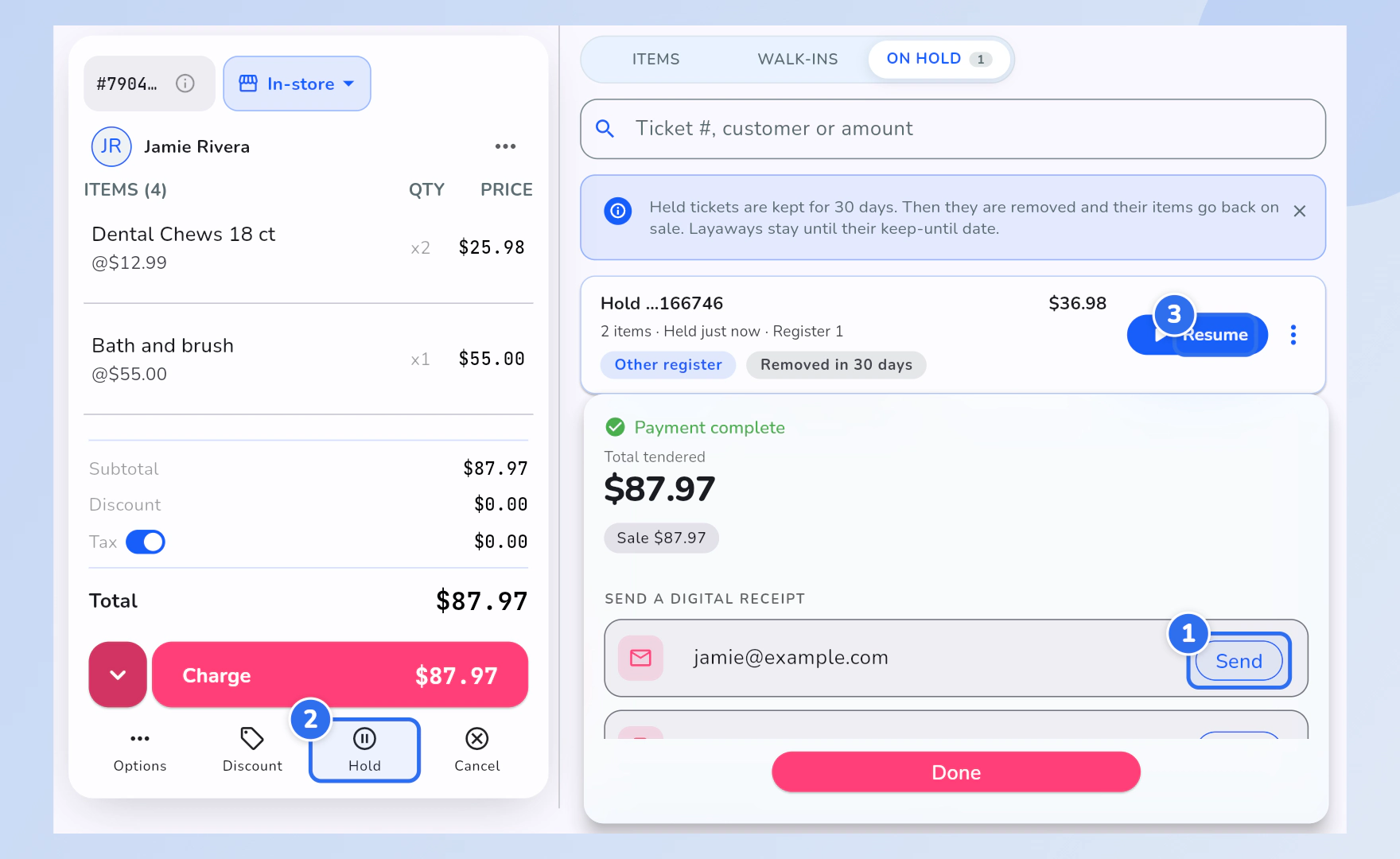
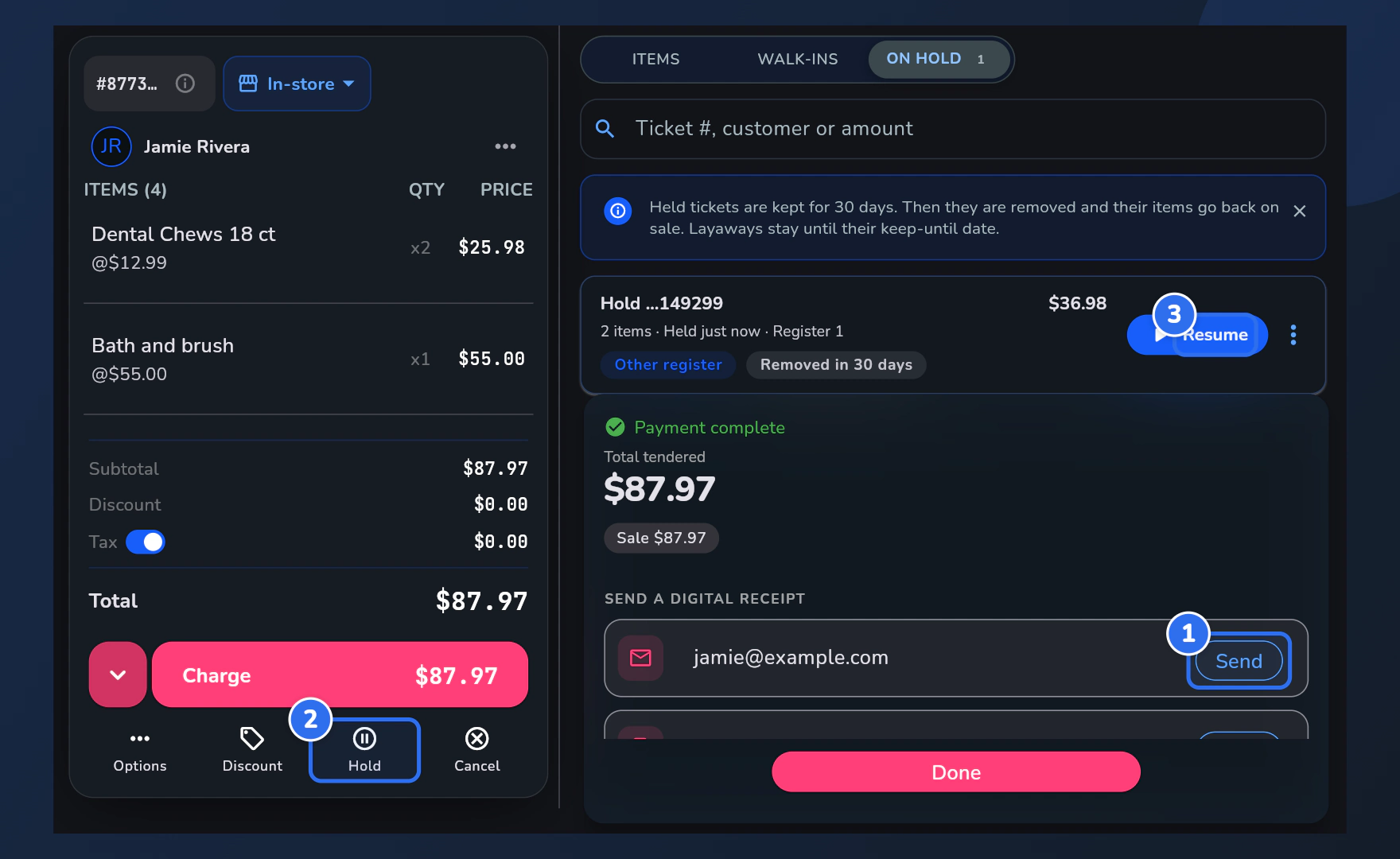
The Register after a sale. Send is marked 1 on the receipt panel, Hold is marked 2 under the ticket and Resume is marked 3 on the On hold tab.The Register after a sale. Send is marked 1 on the receipt panel, Hold is marked 2 under the ticket and Resume is marked 3 on the On hold tab.
On a phone

Bring a held ticket back from Held tickets, in the ⋯ menu or on the empty ticket, with Resume.
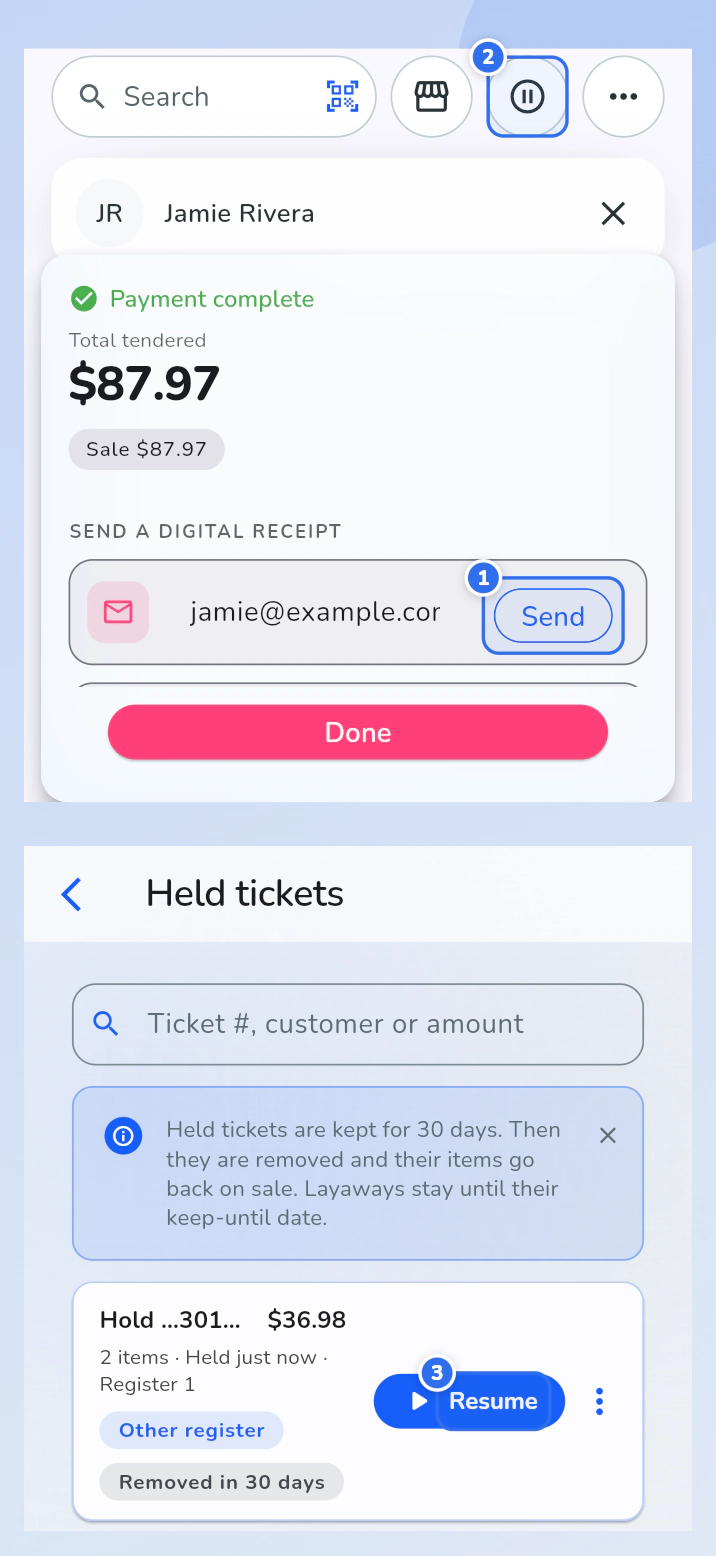
The phone receipt panel with Send marked 1 and the pause button marked 2, above the Held tickets page with Resume marked 3.The phone receipt panel with Send marked 1 and the pause button marked 2, above the Held tickets page with Resume marked 3.
Show me in Franpos

That is the whole Register.

See it with your own business on the screen.

Screens are real Franpos screens with sample data from a demo store.

Trusted by thousands of businesses, including

Woof Gang BakeryTraegerRunzaMenchie'sEarthWise PetMud BayPet PlanetDog KrazyPro Image SportsPet WantsBest West Pet FoodsBrothers Country SupplySam's Cats & DogsMagoo's Pet OutletWoof MeowDogPerfectPACGatewayShubhSumUpWoof Gang BakeryTraegerRunzaMenchie'sEarthWise PetMud BayPet PlanetDog KrazyPro Image SportsPet WantsBest West Pet FoodsBrothers Country SupplySam's Cats & DogsMagoo's Pet OutletWoof MeowDogPerfectPACGatewayShubhSumUp